Create an Aviary Account
Users can search, discover, and access public content on the Aviary platform without creating an account. However, users must create an Aviary account to access restricted resources or manage an organization’s content on the platform. Follow the steps below to create an Aviary user account:
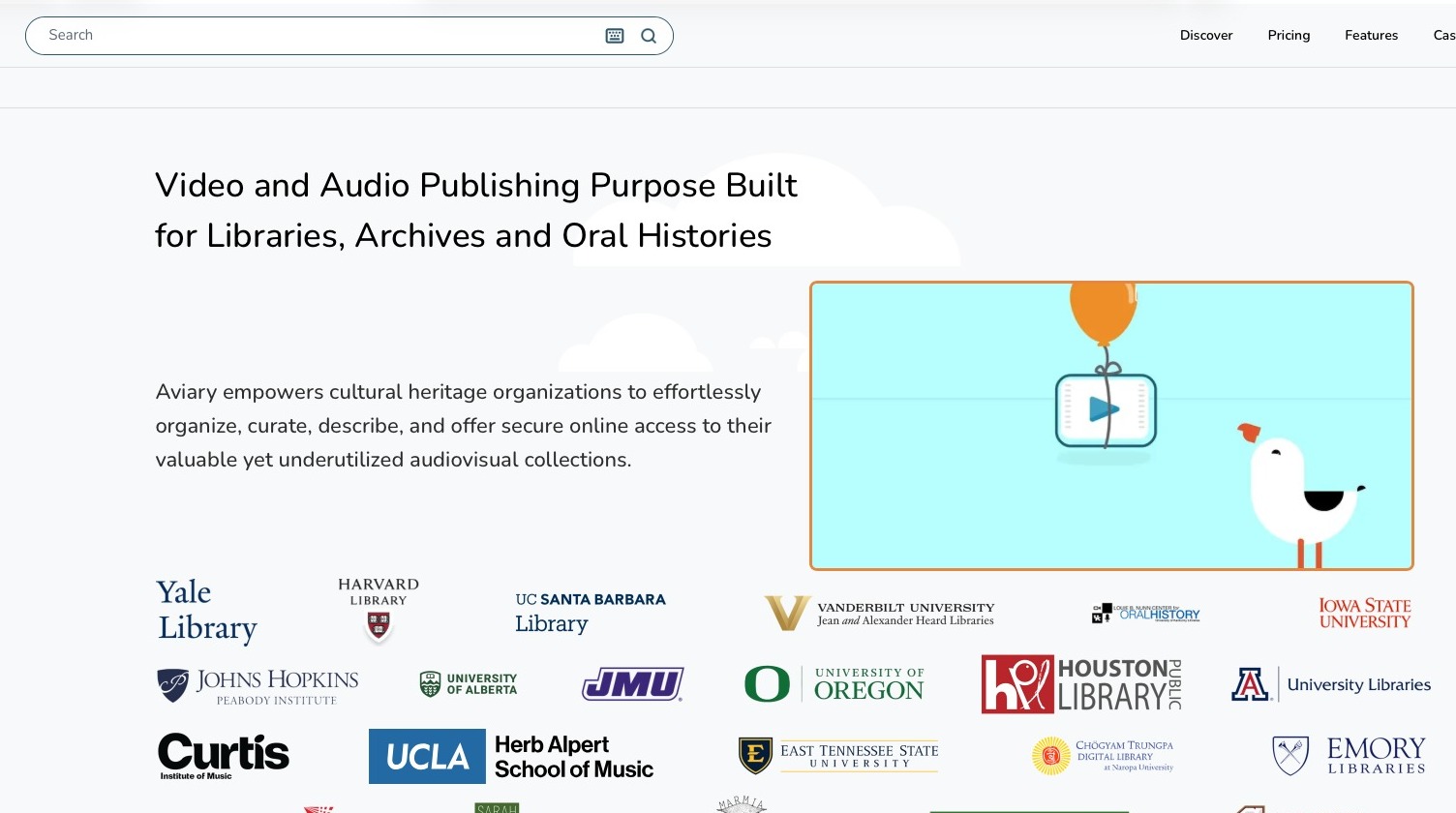
2. Click the Join Now button in the top right corner of the homepage. If you already have an account, simply click the Login button.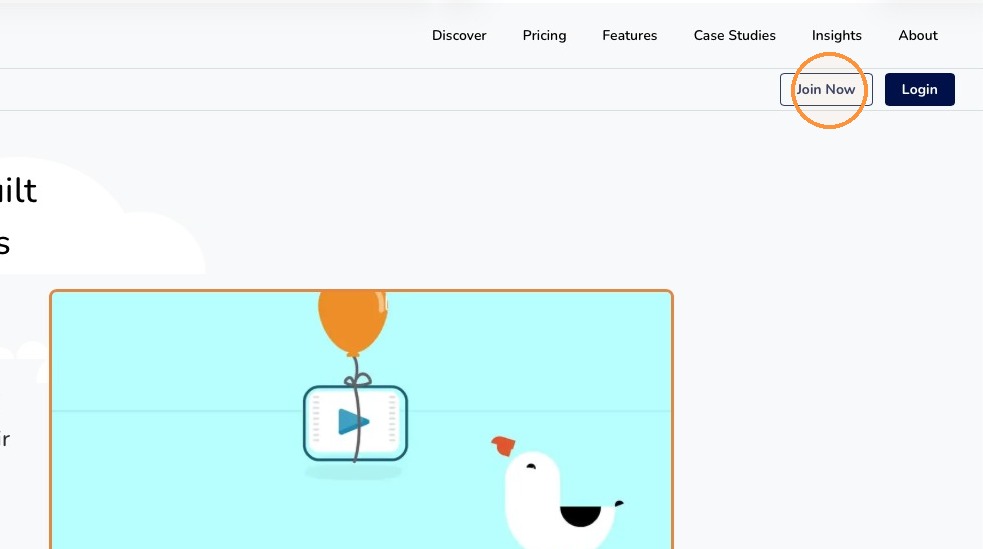
3. Enter your name and email address in the appropriate fields.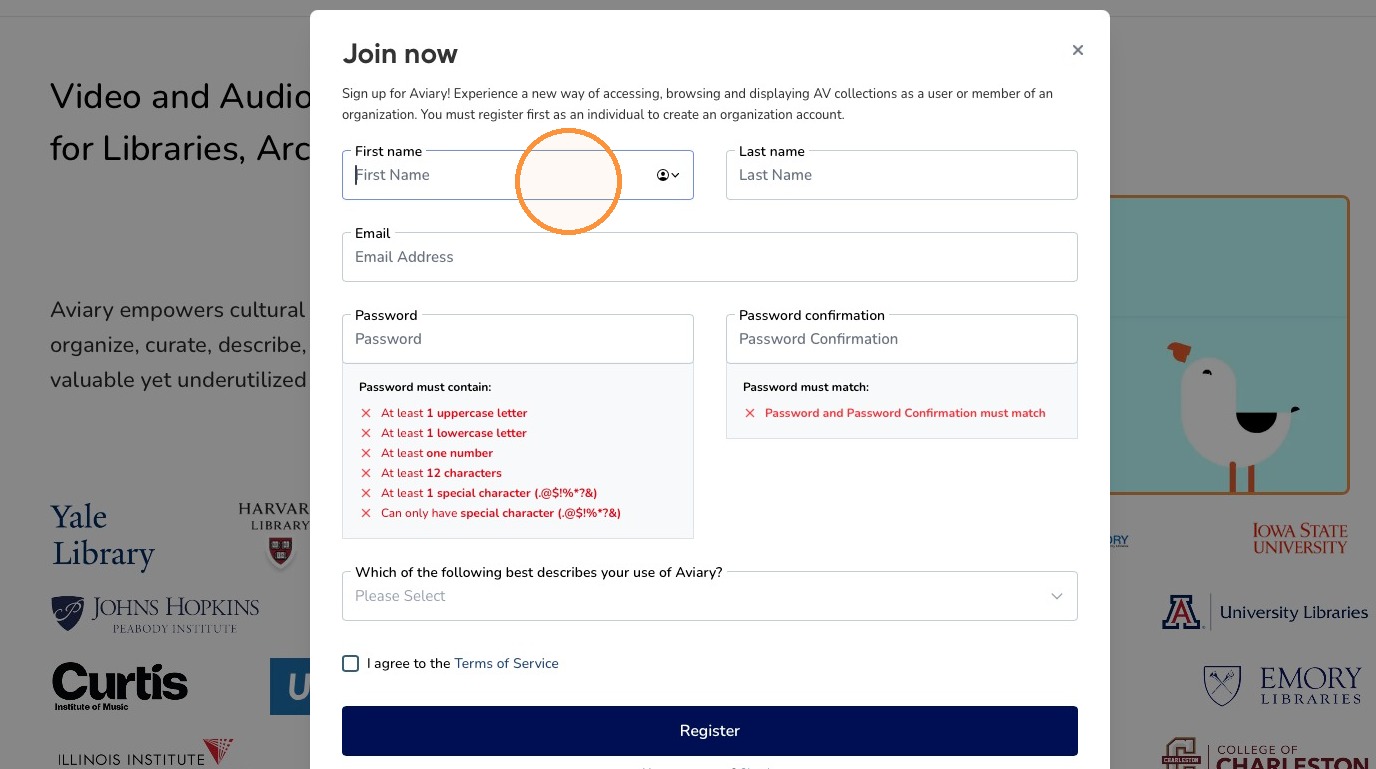
4. Create a password that meets the listed requirements. Enter the password into the Password and Password Confirmation fields.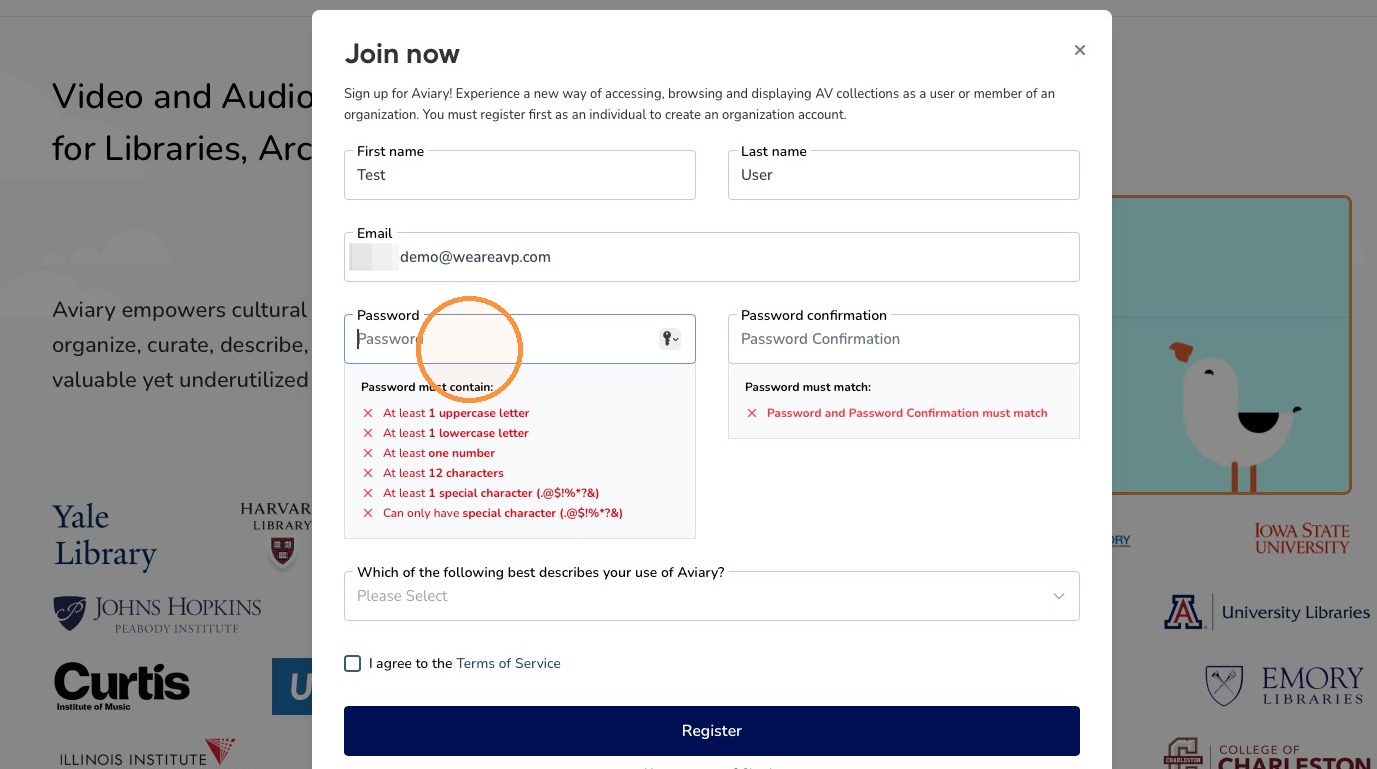
5. Select an option about your use of Aviary from the dropdown menu.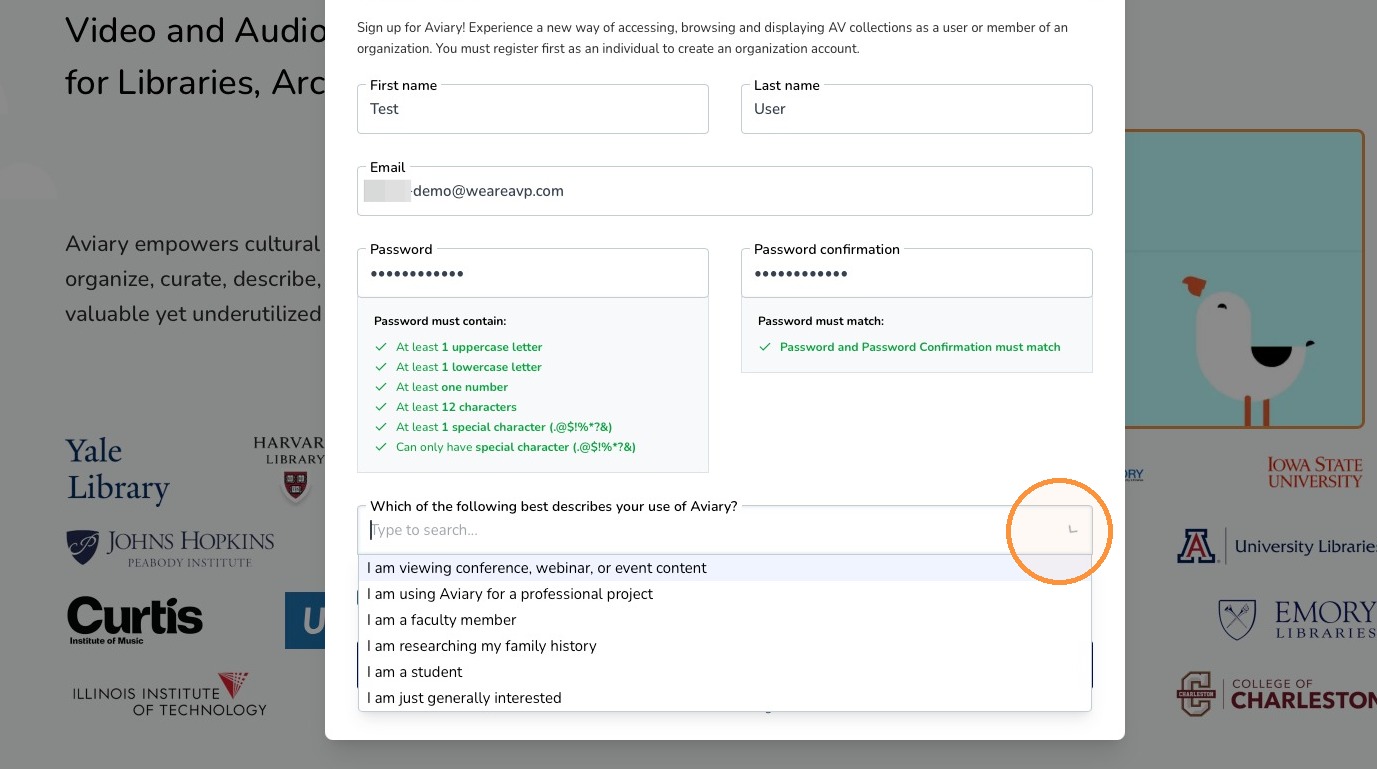
6. Check the “I agree to the Terms of Service” checkbox after reviewing the Terms of Service.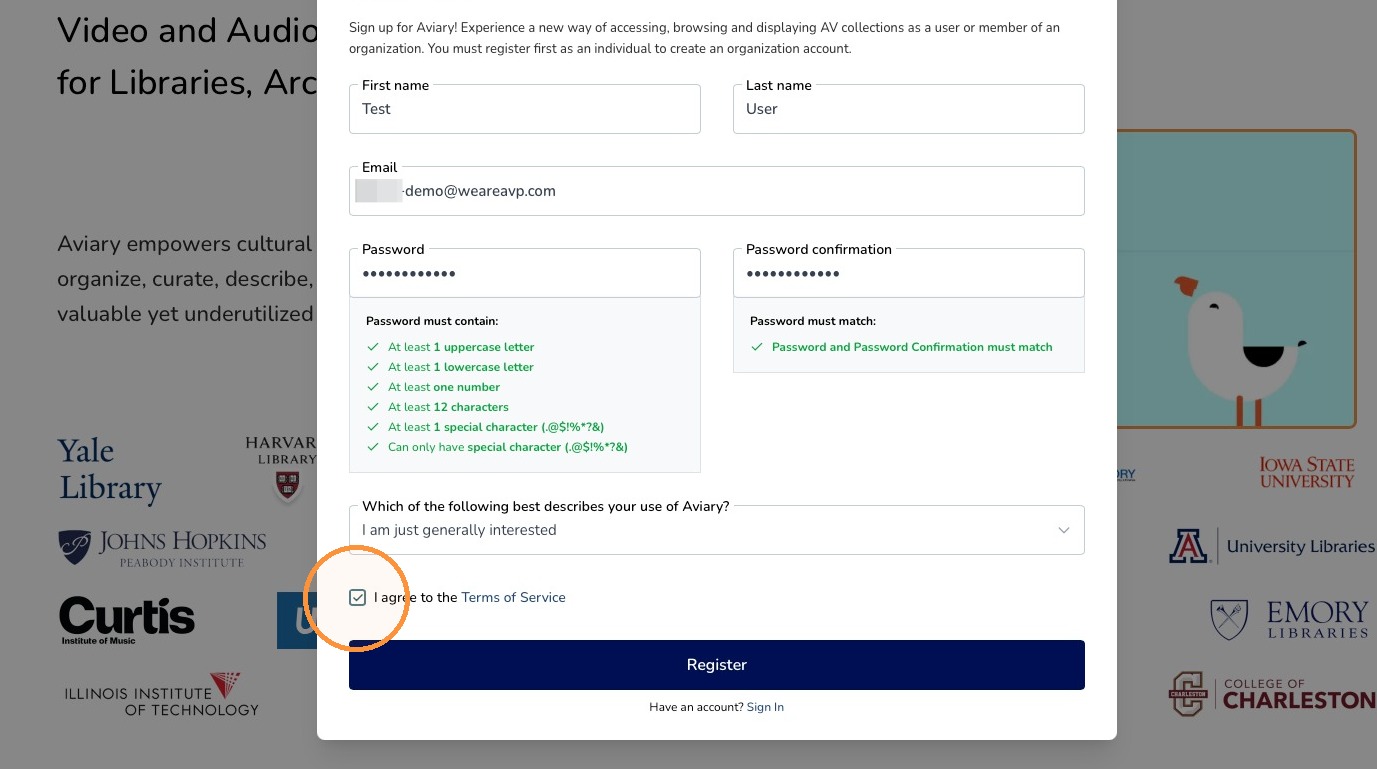
7. Click the Register button.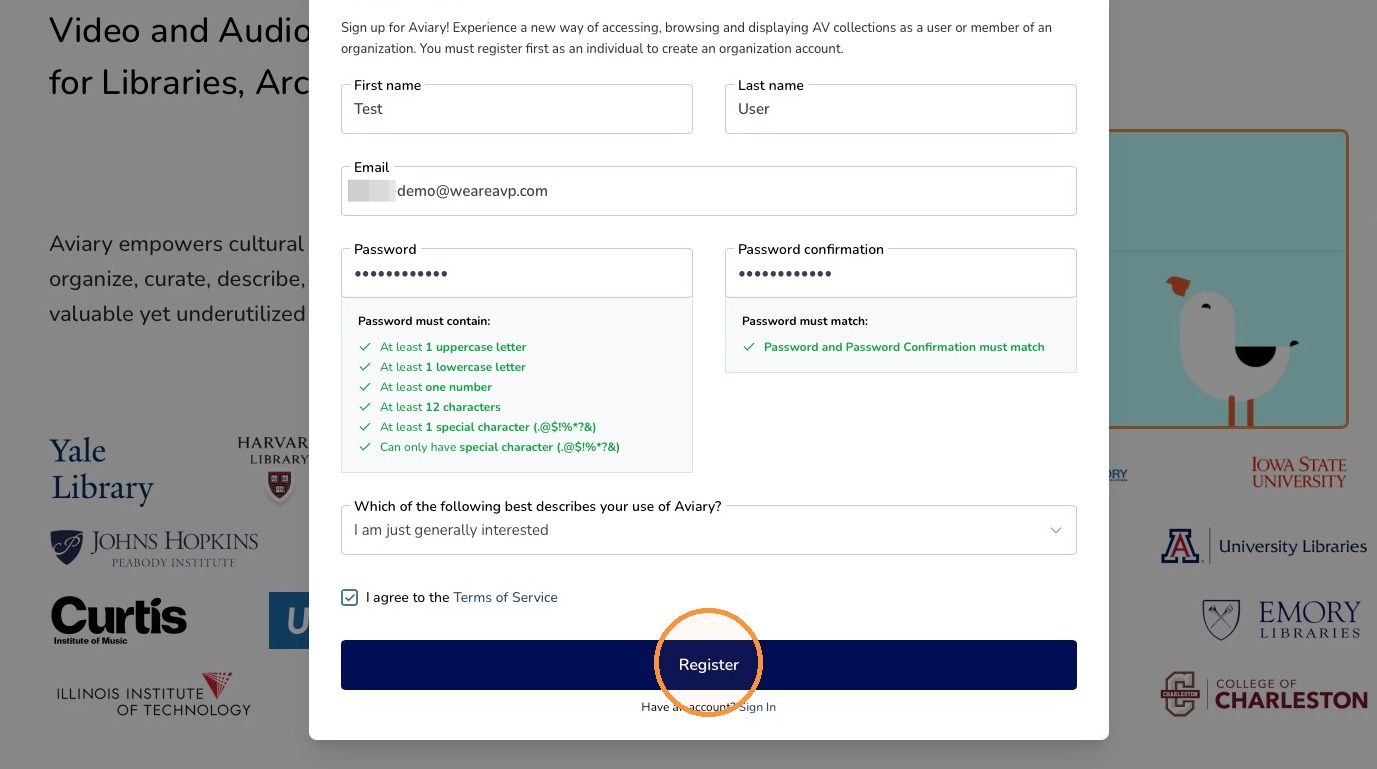
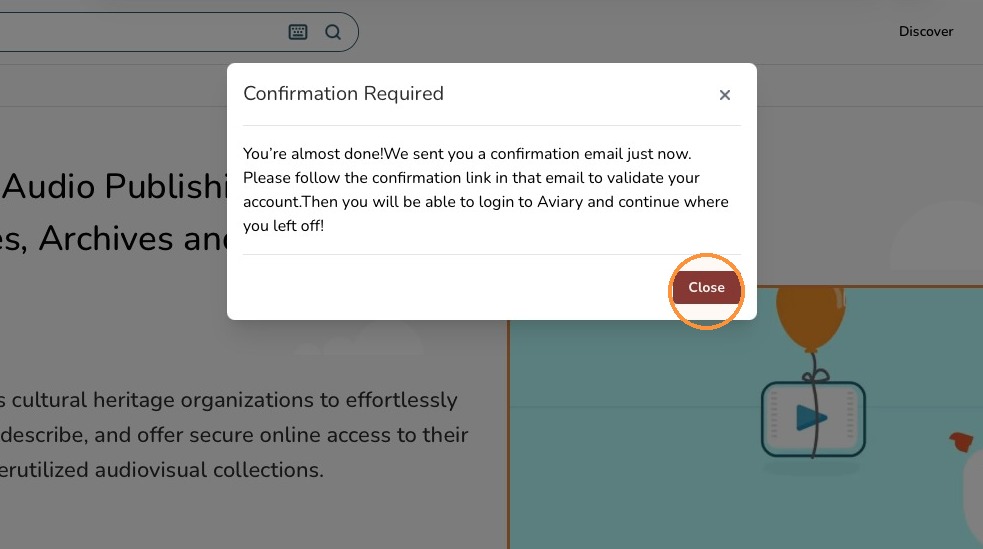
8. A confirmation message will be displayed on the homepage. An email to confirm your Aviary account will be delivered to the registered email address.
9. Open the confirmation email and click the Confirm My Account button. You will be directed back to the Aviary homepage to finish confirming your account and log in.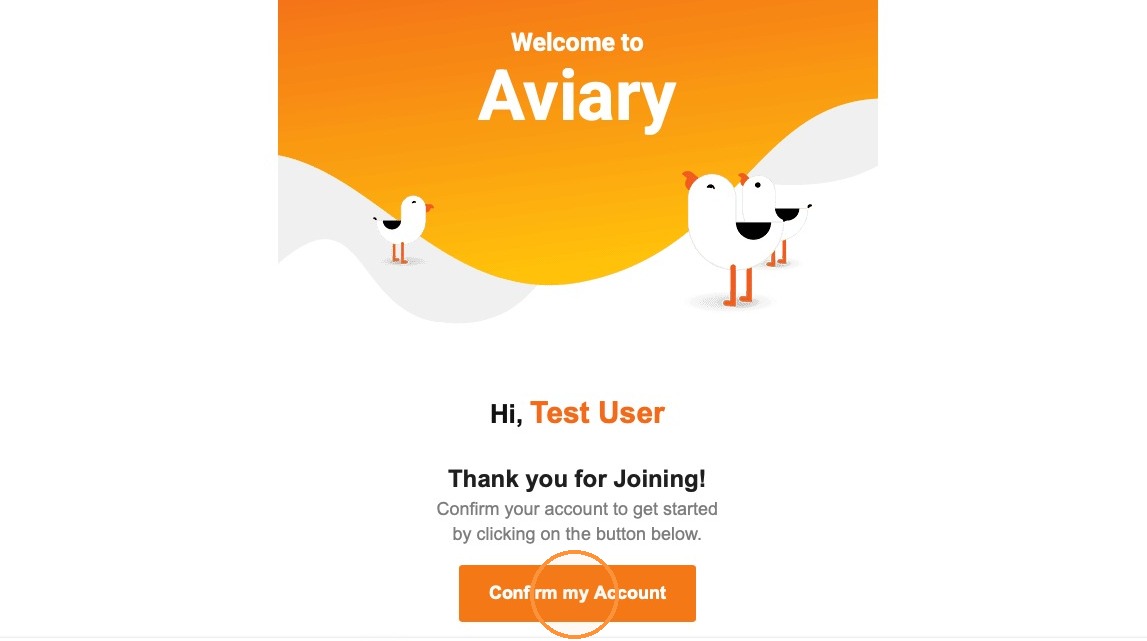
Edit an Aviary account
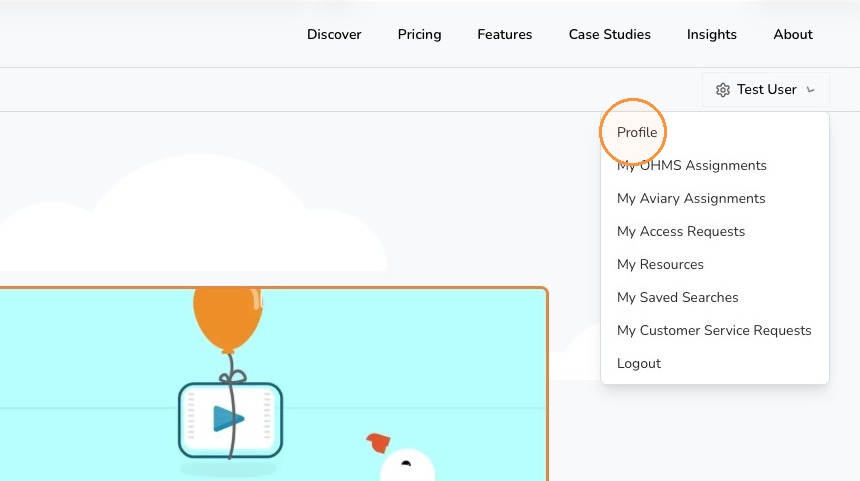
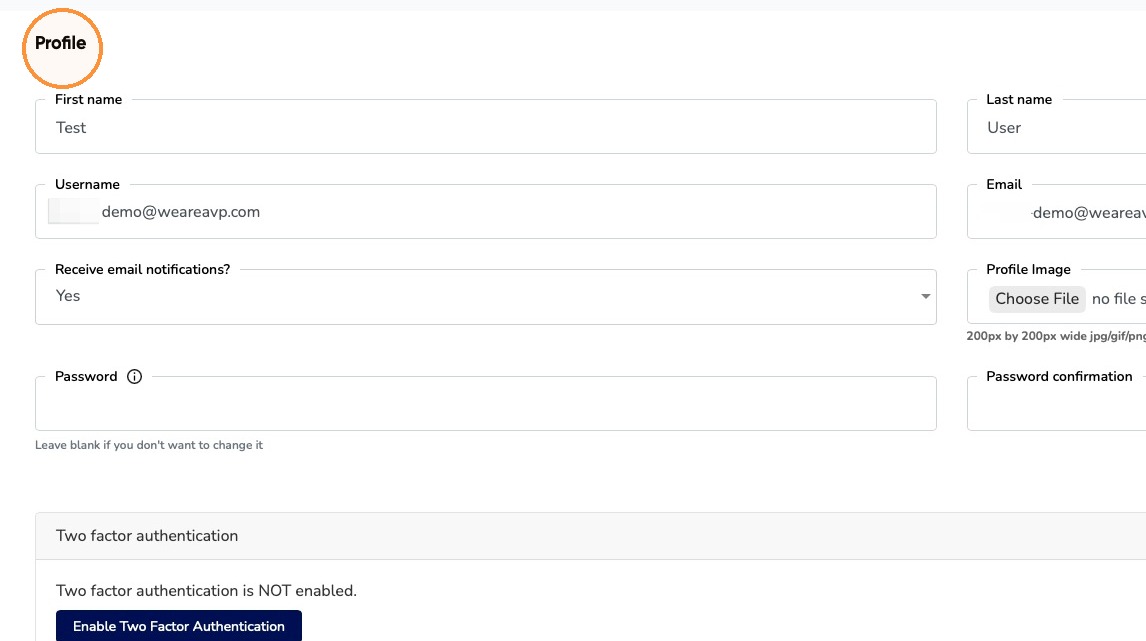
1. To edit an Aviary account, click your name in the top right corner of the homepage. Then select Profile from the dropdown menu.
2. The Profile page will open. Use the corresponding fields to update to your preferred name, username, email address, email notification preferences, and password.
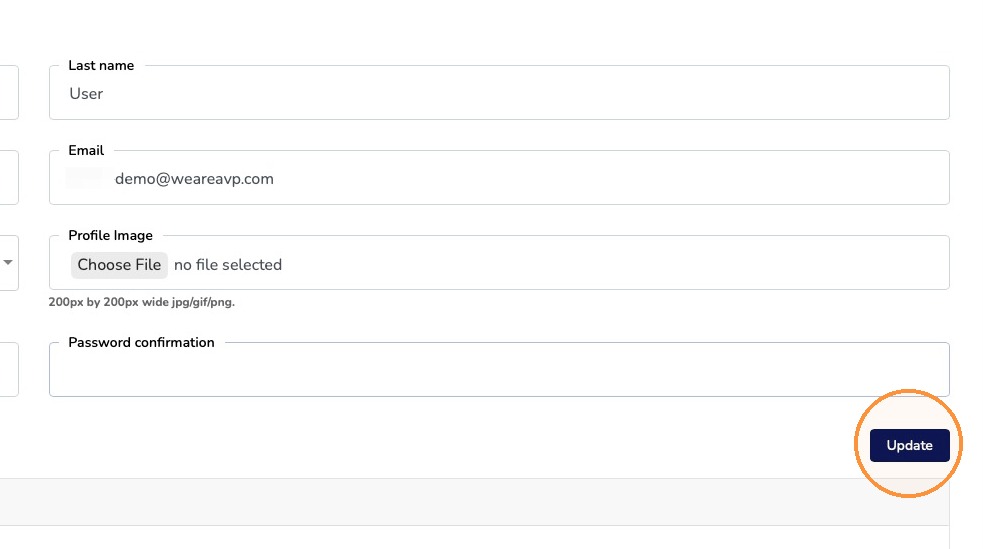
3. Click the Update button to save changes to your profile information.
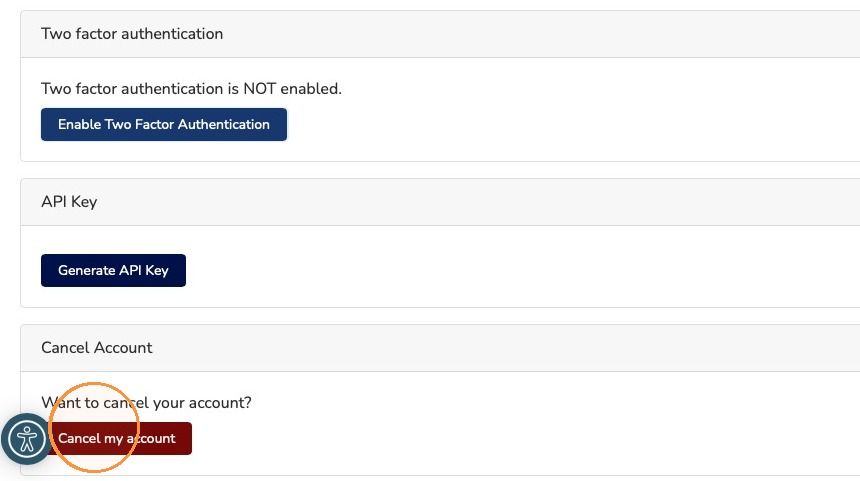
4. Use the buttons at the bottom of the Profile page to make additional changes to your Aviary account. Click the Enable Two Factor Authentication button to configure two-factor authentication for improved security when logging into your Aviary account.
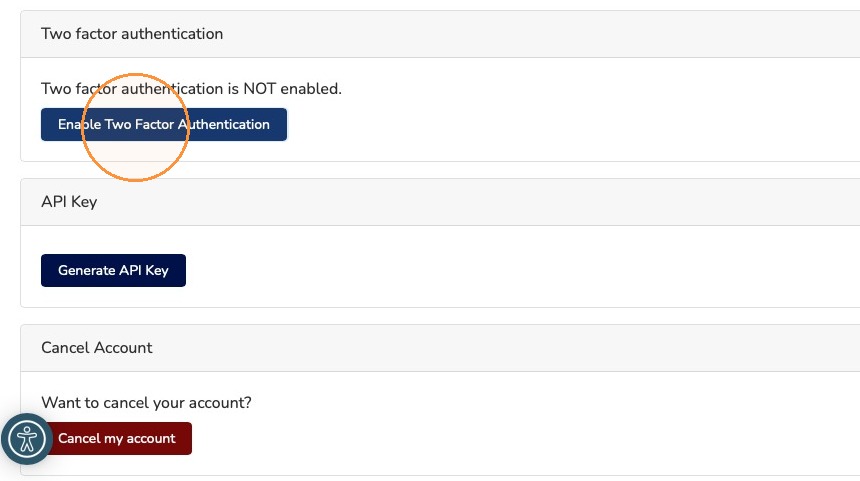

Note: Two-factor authentication is required for all Aviary organization users. See the page for more information about configuring two-factor authentication for your user account.
5. Click the Generate API Key button to create an API Key for your user account. An API Key is required when authenticating and using the Aviary API.
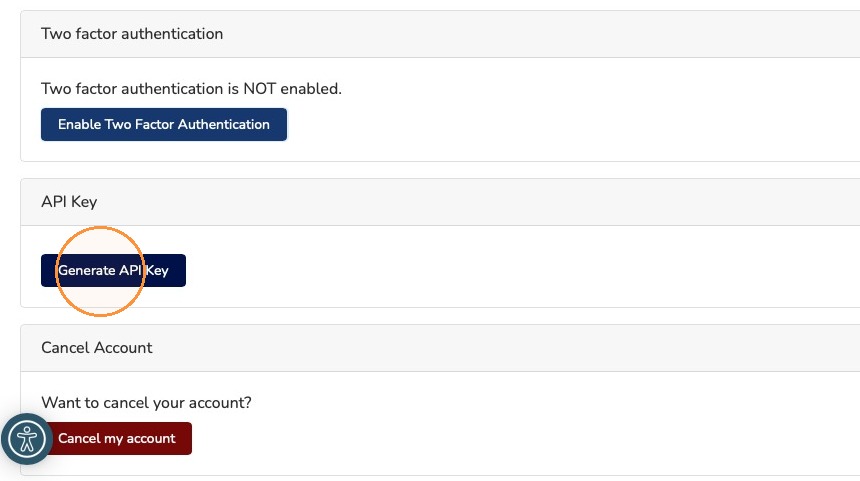
Note: See the page for more information about creating an API Key and using the Aviary API.
6. Click the Cancel My Account button to submit a request to cancel your Aviary user account. After submitting the request, you will receive an email confirming that your Aviary user account will be deleted.